Tutorials
HEIC to PDF converter - iPhone photos, no sign up
Drag and drop one or more HEIC or HEIF files from your iPhone, iPad, or Mac. Each file can be up to 50MB on the free plan.
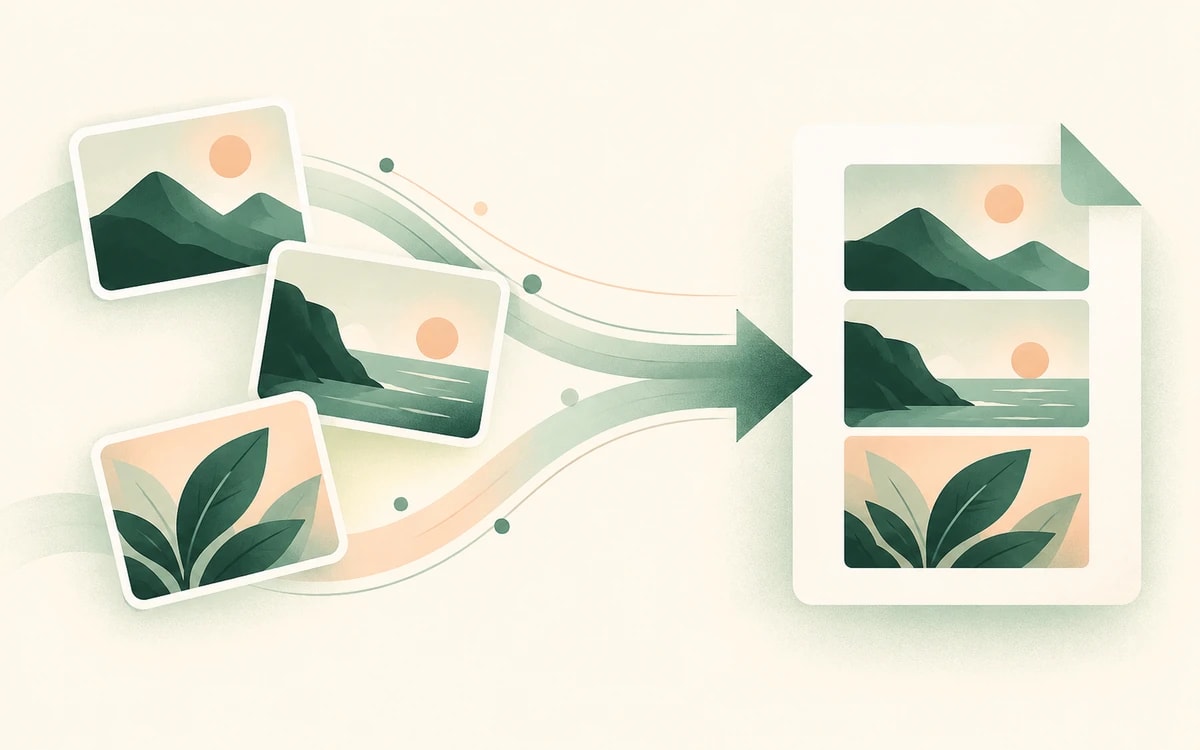
Your browser converts each HEIC photo to a high-quality JPG, the right way up, and each one goes on its own page in the order you added them.
Your converted PDF downloads straight away. No email, no account, and no watermark.
iPhones and iPads save photos as HEIC (High Efficiency Image Container) by default. It keeps photos small, but many websites, upload forms, and Windows PCs won't accept it, and often you need a single PDF anyway: a photographed contract, receipts for an expense report, or pages of handwritten notes.
PainlessPDF converts your HEIC photos into one PDF, one photo per page, in the order you choose. You can mix in JPG and PNG images too.
Your HEIC photos are decoded right in your browser and turned into JPG images there. Those JPGs are then uploaded over an encrypted (HTTPS) connection to build the PDF, which downloads with no watermark. Files are processed only for the conversion you requested and are not kept afterwards.
Yes. You can convert HEIC photos to a PDF for free, with no watermark and no account required.
Windows needs two add-ons from the Microsoft Store to open HEIC photos: the HEIF Image Extensions and the HEVC Video Extensions, and the HEVC one is often paid. Converting your photos to PDF here works in any browser, with nothing to install.
Yes. Add multiple HEIC files at once and they are combined into a single PDF, one photo per page.
Pages follow the order the files are added in, which is usually the order they are listed in when you select them. For a different order, rename the photos first (for example 1, 2, 3), or rearrange the pages afterwards with Organize pages.
Barely. Each HEIC photo is converted to a high-quality JPG before it goes into the PDF. Photos up to about 16 megapixels keep their full resolution; larger ones, like 24 or 48 MP shots from newer iPhones, are scaled down to about 16 MP. The PDF is usually larger than the original HEIC files, because HEIC compresses more efficiently than JPG. If you need a smaller file, use Compress PDF afterwards.
Yes. The rotation your iPhone saved with each photo is applied during the conversion, so portrait shots stay portrait.
Change or replace existing text directly in the document.
Click anywhere to type and fill in non-interactive forms.
Type answers onto any form, even scanned or non-fillable ones.
Type, draw, or upload your signature and place it anywhere.
Highlight, underline, strikethrough, and add notes.
Find tag, alt text and heading problems, and see where each one is.