Tutorials
Runs in your browser - the file is never uploaded
Drop in the scanned or exported file. Files up to 50MB are supported, and nothing is uploaded - pages are checked on your device.
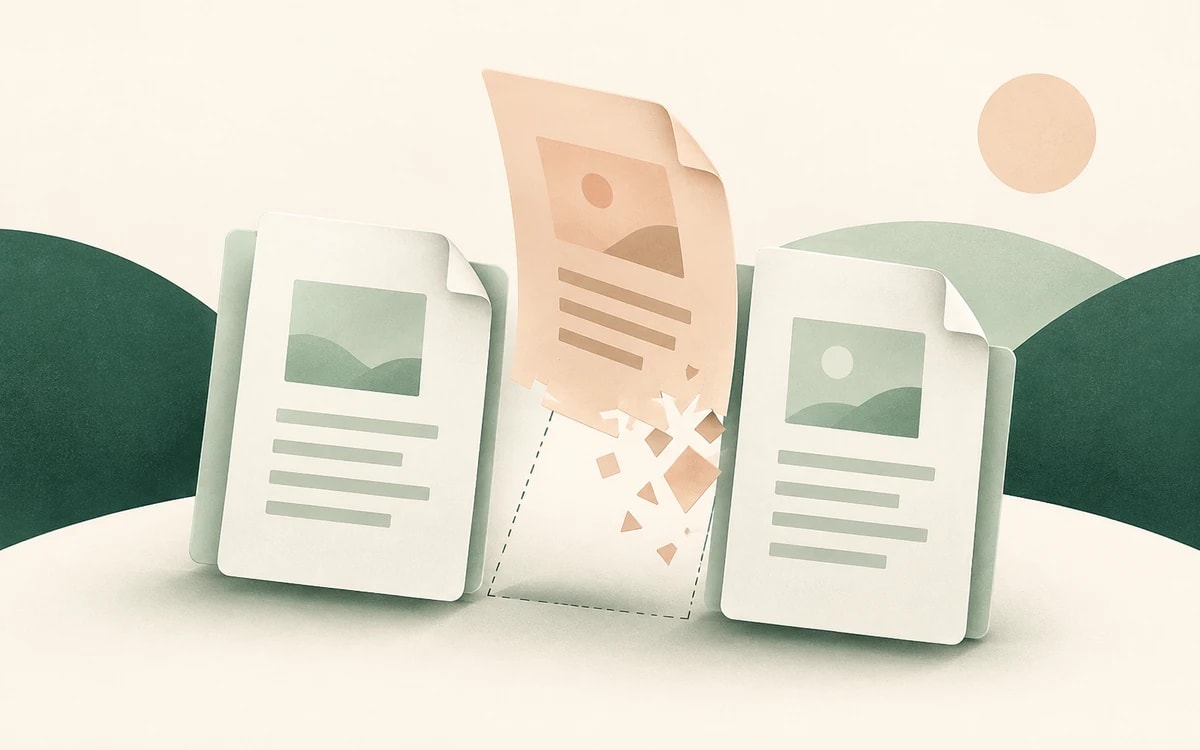
Blank pages are detected and marked for removal. Click any page thumbnail to keep it or to remove it as well.
Remove the marked pages and download the cleaned PDF. All other pages stay exactly as they were.
Duplex scanning is the most common source of blank pages: the scanner captures both sides of every sheet, so every one-sided page leaves an empty back in the PDF. A 30-page letter can easily turn into a 60-page scan, half of it white.
This tool renders each page, measures how much of it is actually printed, and flags the pages that are empty. A thin band along the edges is ignored, so scanner shadows and feed marks do not count as content, and small specks of dust are tolerated.
Exported documents pick up blank pages too: a stray page break or an empty paragraph at the end of a Word file often becomes an empty last page in the PDF, and section breaks can add blank pages in the middle.
The tool catches those as well - including pages that are empty apart from a page number in the header or footer, which Word adds to every page. Pages with any real words on them are always kept.
Detection is automatic, but not infallible. On scanned pages, which have no text layer, very faint content - a light pencil note, a pale stamp, or a few handwritten words - may be marked as blank. That is why every page is shown as a thumbnail and nothing is deleted until you click the button.
If too many or too few pages are marked, change what counts as blank: "Only empty pages" is the most careful setting, while "Ignore specks & noise" also catches noisy scans and show-through from the other side of the sheet.
Scanned documents are often personal: bank statements, medical letters, signed contracts. Everything here runs in your browser, so the PDF is never uploaded, stored, or seen by anyone else.
It is free, with no watermark and no sign up.
If a page has real words on it - even a short label like "Signature:" - it is always kept. Otherwise the page is rendered at a small size and the share of dark pixels is measured, ignoring a narrow strip along the edges; pages below a small threshold are marked as blank. A page whose only text is a page number counts as blank, which is usually what you want for exported documents.
Yes. Scanned blank pages are rarely pure white, so the tool tolerates dust, light noise, and edge shadows. Choose "Ignore specks & noise" for very noisy scans.
Click its thumbnail to keep it. You can also switch to "Only empty pages" so that only completely empty pages are selected. Nothing is removed until you confirm.
Yes - click any page thumbnail to add it to the removal. For more control, such as deleting page ranges, use the free Delete pages tool.
No. Detection and removal both run in your browser. The file never leaves your device.
Change or replace existing text directly in the document.
Click anywhere to type and fill in non-interactive forms.
Type answers onto any form, even scanned or non-fillable ones.
Type, draw, or upload your signature and place it anywhere.
Highlight, underline, strikethrough, and add notes.
Find tag, alt text and heading problems, and see where each one is.