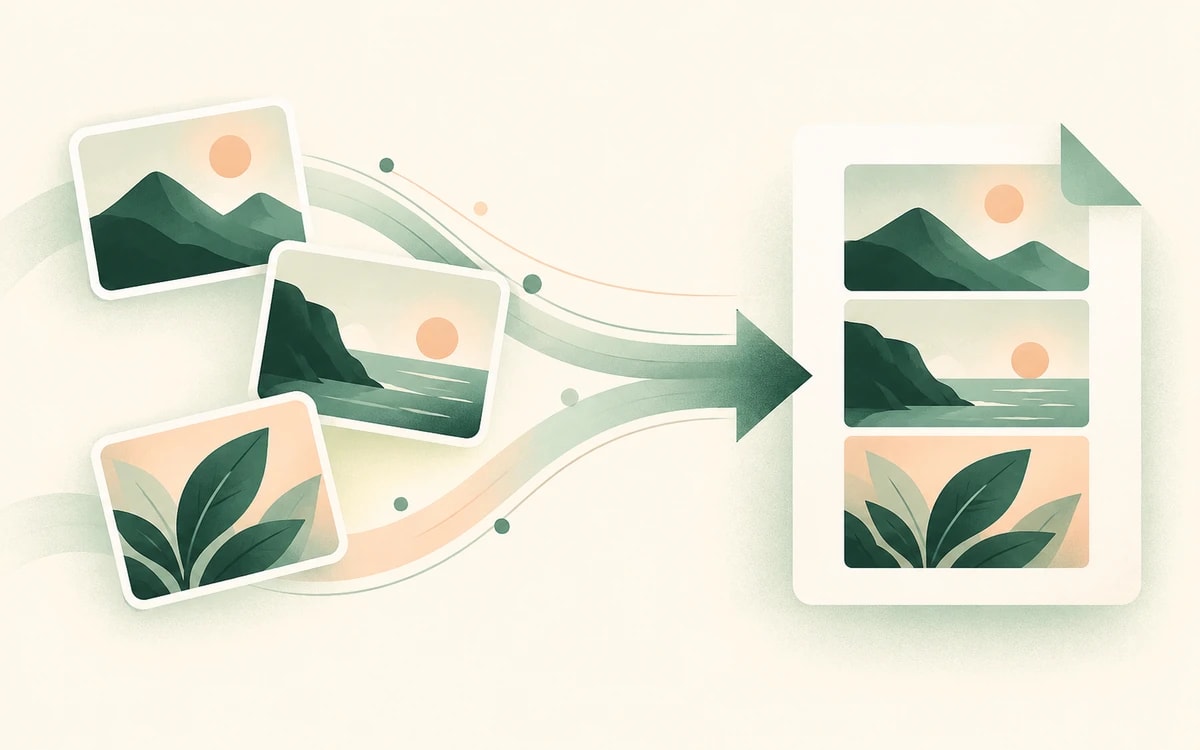
Screenshots sammeln sich schnell an: ein paar Ausschnitte aus einem Chat, Schritte aus einer App, der Beleg einer Zahlung oder ein Fehler, den du melden musst. Sie als ein Dutzend einzelner Bilddateien zu verschicken, ist chaotisch und gerät leicht durcheinander. Eine PDF in der richtigen Reihenfolge lässt sich für die andere Person viel leichter öffnen und lesen.
Diese Anleitung zeigt dir, wie du Screenshots kostenlos mit PainlessPDF in einer einzigen PDF zusammenführst – ohne Konto und ohne Wasserzeichen.
Wann eine PDF besser ist als ein Ordner voller Bilder
- Beim Verschicken von Belegen oder Nachweisen, die in der richtigen Reihenfolge bleiben sollen
- Beim Teilen einer Schritt-für-Schritt-Anleitung als ein einziges Dokument
- Beim Anhängen von Screenshots an ein Support-Ticket oder einen Bericht
- Wenn du eine Reihe von Quittungen oder Bestätigungen zusammenhalten willst
So führst du Screenshots in einer PDF zusammen
1. Öffne das Tool „JPG zu PDF"
Geh zu JPG zu PDF. Es akzeptiert sowohl PNG als auch JPG und deckt damit Screenshots von jedem Handy und jedem Computer ab.
2. Füge deine Screenshots in der richtigen Reihenfolge hinzu
Wähle alle Screenshots aus, die du einfügen möchtest. Jeder wird zu einer eigenen Seite – in der Reihenfolge, in der du sie hinzufügst. Benenne oder wähle sie also in der Reihenfolge, die du haben willst.
3. Lade die zusammengeführte PDF herunter
Das Tool legt einen Screenshot pro Seite ab und gibt dir eine einzige PDF zum Herunterladen. Kein Wasserzeichen, kein Konto.
Tipps
- Schneide vorher zu, wenn nötig. Einen Screenshot auf den wichtigen Teil zuzuschneiden, hält die PDF sauber und die Dateigröße klein.
- Die Reihenfolge zählt. Füge die Bilder in Leserichtung hinzu, damit die Seiten richtig herauskommen.
- Halte die Dateien überschaubar. Der kostenlose Tarif verarbeitet Bilder bis zur Größenbegrenzung pro Datei, was für typische Screenshots mehr als genug ist.
Ist das Zusammenführen von Screenshots zu einer PDF kostenlos?
Ja. Das Zusammenführen von Bildern zu einer PDF ist kostenlos – ohne Anmeldung und ohne Wasserzeichen auf dem Ergebnis.
Du hast einen Stapel Screenshots? Führe sie jetzt zu einer PDF zusammen.