Guides
Word to PDF in one step - no sign up
Drag and drop a .doc or .docx file. Files up to 50MB are supported on the free plan.
Your document is converted with LibreOffice, which keeps the layout, fonts, and formatting close to the original.
Save the finished PDF straight away. No email, no account, and no watermark.
A PDF is the safe way to send a document: it looks the same on every device, the formatting cannot shift, and the reader does not need Word installed. That is why job applications, contracts, and reports are almost always sent as PDFs.
PainlessPDF converts your .doc or .docx into a clean PDF while preserving the layout, fonts, and spacing of the original.
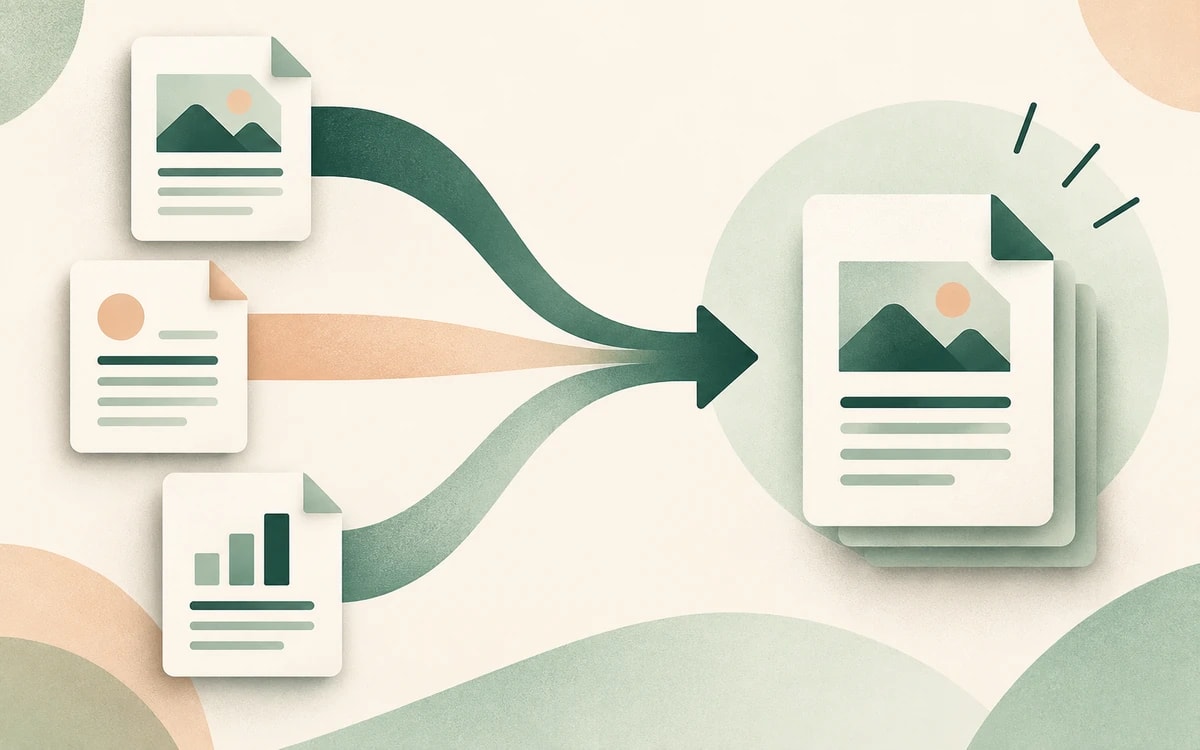
Conversion is handled by LibreOffice, the same engine many desktop tools use, so headings, tables, lists, and images come through close to how they look in Word. Once it is a PDF, you can also sign, annotate, or merge it with the other PainlessPDF tools.
There is no account to create and nothing to download. Your file is sent over a secure (HTTPS) connection, converted on our servers, and the PDF downloads with no watermark. It is used only for the conversion you requested and is not kept afterwards.
Yes. You can convert Word documents to PDF for free, with no watermark and no account required.
You can convert .doc, .docx, .odt, and .rtf files. Each file needs to be within the free plan size limit.
Conversion uses LibreOffice, so layout, fonts, tables, and images stay close to the original. Very complex documents with unusual fonts can shift slightly, as with any converter.
Yes. Once your document is a PDF you can sign, annotate, add text, or merge it using the other free PainlessPDF tools.
No. The conversion runs online, so you do not need Microsoft Word or any install. Upload your file and the PDF downloads when it's ready.
Change or replace existing text directly in the document.
Click anywhere to type and fill in non-interactive forms.
Type answers onto any form, even scanned or non-fillable ones.
Type, draw, or upload your signature and place it anywhere.
Highlight, underline, strikethrough, and add notes.
Find tag, alt text and heading problems, and see where each one is.