Jemand schickt dir ein PDF, das deine Unterschrift braucht. Du öffnest es, merkst, dass du es ohne Ausdrucken nicht unterschreiben kannst, und suchst nach einem Tool, das weder ein Konto noch eine Kreditkarte verlangt.
In dieser Anleitung zeigen wir dir, wie du jedes PDF mit PainlessPDF unterschreibst – einem kostenlosen Editor, der direkt im Browser läuft. Keine Downloads, keine Anmeldung, keine Wasserzeichen.
Häufige Gründe, ein PDF zu unterschreiben
- Einen Vertrag, Mietvertrag oder eine Vereinbarung unterschreiben
- Eine Rechnung oder Bestellung freigeben
- Eine Bewerbung oder ein Onboarding-Formular ausfüllen
- Jede Seite eines rechtlichen Dokuments mit deinem Kürzel versehen
- Eine Einverständniserklärung, ein Einwilligungsformular oder Unterlagen für die Schule unterschreiben
So unterschreibst du ein PDF
1. Öffne dein PDF
Geh zum PainlessPDF-Editor und zieh deine Datei auf die Seite oder klick, um sie auszuwählen. Das Dokument öffnet sich sofort in deinem Browser.
2. Wähle das Unterschriften-Werkzeug
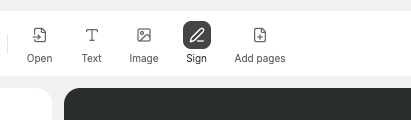
Klick in der Werkzeugleiste auf die Schaltfläche Unterschreiben oder drück S auf deiner Tastatur. Wenn du noch keine Unterschrift in Arbeit hast, öffnet sich der Erstellungsdialog automatisch.
3. Erstelle deine Unterschrift
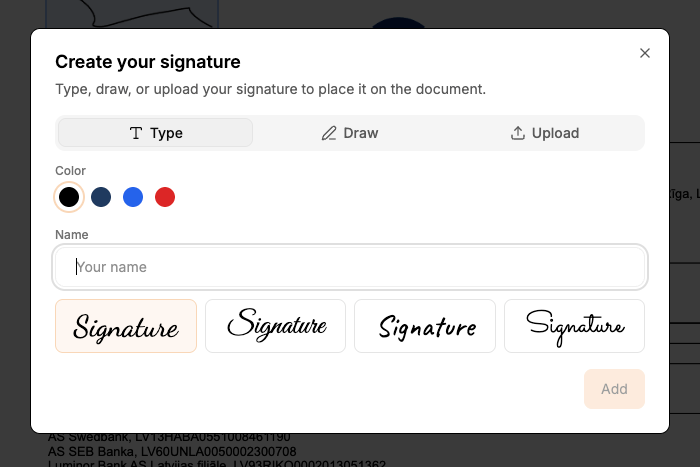
Es gibt drei Wege, eine Unterschrift zu erstellen:
- Tippen – Gib deinen Namen ein und wähl aus mehreren Schriftarten im Handschrift-Stil. Such dir eine Farbe aus, die zum Dokument passt.
- Zeichnen – Schreib deine Unterschrift mit Maus oder Trackpad frei Hand. Pass Strichstärke und Farbe nach deinem Geschmack an.
- Hochladen – Zieh ein Bild deiner vorhandenen Unterschrift hinein (PNG oder JPG).
4. Platziere deine Unterschrift
Klick auf Hinzufügen, und deine Unterschrift erscheint in der Mitte der aktuellen Seite. Zieh sie auf die Unterschriftslinie oder an die Stelle, wo sie hingehört.
5. Bei Bedarf Größe anpassen
Zieh an den Eckgriffen, um die Unterschrift größer oder kleiner zu machen. Das Seitenverhältnis bleibt fixiert, damit nichts verzerrt wird.
6. Bestätigen oder anpassen
Klick auf das grüne Häkchen, um die Platzierung zu bestätigen, oder zieh am Griff, um sie neu zu positionieren. Du kannst die Unterschrift jederzeit löschen und erneut hinzufügen.
7. Lade dein PDF herunter
Klick oben rechts auf Herunterladen. Deine Unterschrift wird direkt als Bildebene im PDF eingebettet.
Tipps zum Unterschreiben von PDFs
- Verwende eine dunkle Farbe. Schwarz oder Dunkelblau wirkt auf gedruckten Dokumenten am natürlichsten.
- Zeichne langsam. Das Unterschriftenfeld erfasst jede Bewegung, daher ergibt ein langsamerer Strich ein saubereres Ergebnis.
- Zoom zuerst hinein, um deine Unterschrift präzise auf der Unterschriftslinie zu platzieren.
- Passe die Größe vor dem Positionieren an. Stell zuerst die richtige Größe ein und zieh die Unterschrift dann an ihren Platz – das spart Nachjustieren.
Ist das eine rechtsverbindliche Unterschrift?
Für die meisten alltäglichen Dokumente wird eine getippte oder gezeichnete Unterschrift auf einem PDF akzeptiert. Mietverträge, Freelancer-Verträge, interne Freigaben und Schulformulare erfordern in der Regel keine zertifikatsbasierte digitale Signatur. Wenn dein Dokument eine qualifizierte elektronische Signatur nach Vorschriften wie eIDAS oder ESIGN verlangt, brauchst du einen dedizierten E-Signatur-Dienst mit Identitätsprüfung.
Gescannte PDFs unterschreiben
Gescannte PDFs sind nur Bilder, aber das spielt für Unterschriften keine Rolle. Deine Unterschrift wird als Ebene über der Seite platziert, also funktioniert das bei gescannten Dokumenten genauso wie bei nativen PDFs.
Warum nicht ausdrucken, unterschreiben und einscannen?
Ein Dokument auszudrucken, um es von Hand zu unterschreiben, und es wieder einzuscannen, kostet Zeit und Papier. Das Ergebnis ist eine Datei von geringerer Qualität und größerem Umfang. Direkt im Browser zu unterschreiben spart dir all das und liefert ein sauberes Resultat.
Deine Datei wird über eine sichere, verschlüsselte Verbindung (HTTPS) übertragen, auf unseren Servern verarbeitet, ausschließlich zum Unterschreiben verwendet und danach automatisch aus der temporären Sitzung gelöscht. PainlessPDF ist kostenlos, ohne Anmeldung und ohne Wasserzeichen.