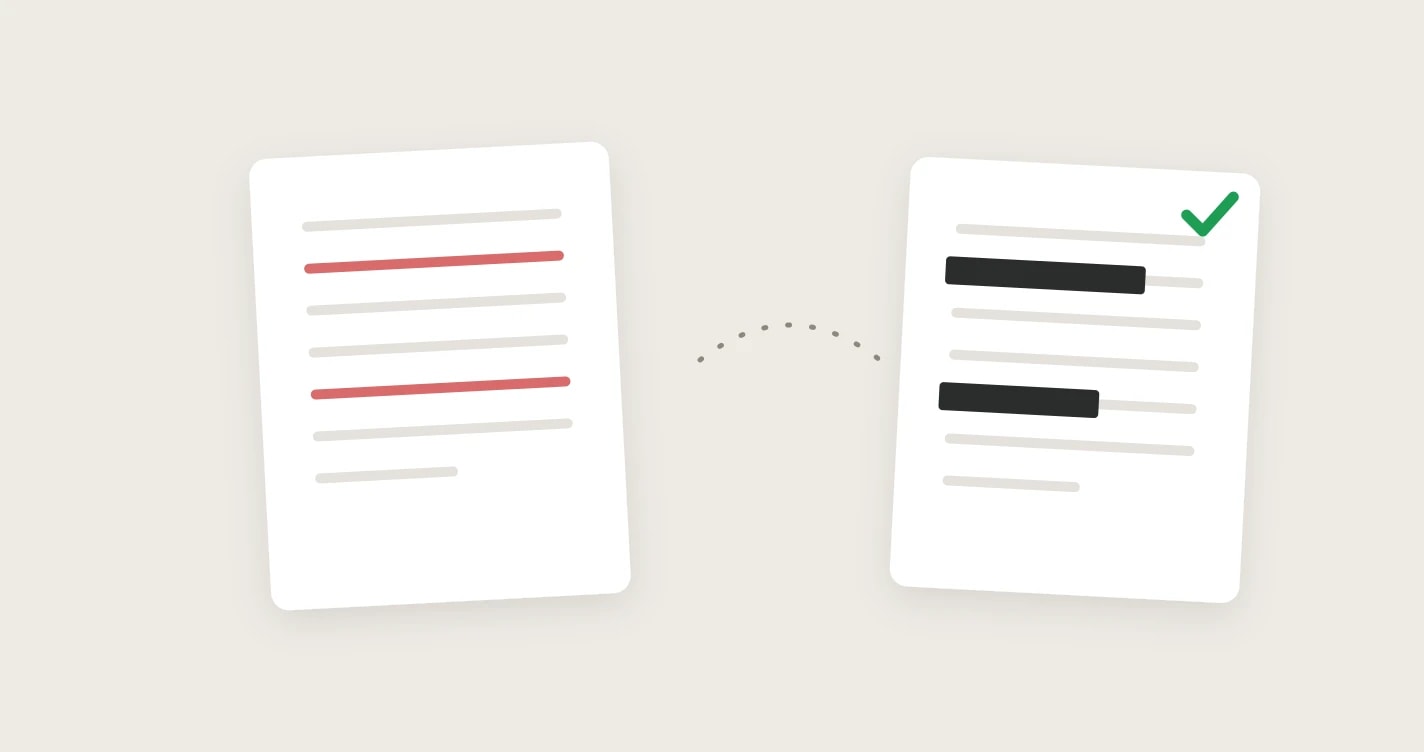
Redacting a PDF sounds simple: put a black bar over the sensitive part and send the file. The problem is that most black bars hide nothing. The text is still sitting in the file underneath, and anyone who copies, searches, or moves the bar can read it.
This guide shows how to redact a PDF for free with PainlessPDF so the content is actually removed, and how to check that your own redaction worked before you share the document.
When you need to redact a PDF
- Sharing a bank statement, payslip, or tax document with only the figures someone needs
- Sending a contract or invoice to a third party without personal addresses or account numbers
- Publishing a report, court filing, or FOI response that names private individuals
- Removing a signature, ID photo, or QR code before posting a document online
How to redact a PDF
1. Open the redact tool
Go to PainlessPDF Redact PDF and drag your file onto the drop area, or click to browse. The document opens in the editor with the redact tool already selected. The editor runs in a desktop browser.
2. Draw a box over what to hide
Drag a box over each name, number, or image you want gone. Add as many boxes as you need, across as many pages as you need. If you mark the wrong spot, click the small X on that box to remove it.
3. Apply the redactions
Click Apply redactions. The text and images under each box are deleted from the file itself, and a black box is drawn in their place. The rest of the page stays as normal, selectable text.
Applying is permanent: it clears the undo history, and it also removes bookmarks, form fields, and document metadata. If a page stores its text in a way that cannot be safely cleared in place, that page is flattened to an image instead, so nothing hidden survives. You are told when this happens.
4. Download
Click Download in the top-right corner. Keep your original file somewhere safe if you might need the unredacted version later, because the redacted copy cannot be turned back.
Why a black box is not a redaction
These are the most common ways people "redact" a PDF that leave the content readable:
- A black rectangle or shape drawn on top of the text with a PDF editor or annotation tool
- A black highlighter, which is just a highlight annotation in a dark color
- Black text highlighting in Word before exporting to PDF
- A sticky note or image placed over the sensitive part
In every case the original text is still part of the page, and the cover is a separate layer on top. The page looks redacted, but copying, searching, or extracting the text reads straight through it.
Real redaction works the other way around: the content is removed first, and the black box is only a visual marker of where it used to be.
Can a redaction be removed?
It depends entirely on how it was made.
Visual-only redactions can be undone. If the black box is just drawn over the text, the information was never removed, so there is nothing to "break". Moving the box or copying the area reveals the text. Many publicly reported redaction failures happened exactly this way.
True redactions cannot be removed. When the text and images are deleted from the file, there is nothing left underneath the box to recover. No tool can bring back content that is no longer in the file. That is the kind of redaction PainlessPDF applies.
A few things can still give information away even after a proper redaction, so keep them in mind:
- The size of the box can hint at the length of a name or number. Cover the whole field rather than tracing each word.
- Repeated mentions. A name you redacted on page 2 may still appear in a header, a caption, or on page 14.
- Metadata and file names, covered below.
Check that your redaction is real
Before you send a redacted PDF, open the downloaded file and run these quick checks on it:
- Select and copy. Drag across the black box and the text around it, copy, and paste into a plain text editor. Nothing from the redacted area should appear.
- Search for it. Use Ctrl+F (Cmd+F on a Mac) to search for a redacted word or number. A real redaction returns no results.
- Try to move the box. Open the file in a PDF editor. If the black box can be dragged aside to show text underneath, it was only a cover.
- Check the properties. Look at the document properties (usually File > Properties) for an author, title, or subject that names someone.
If any check shows the hidden content, the document is not redacted. Redact the original again with a tool that removes the content.
Do not forget the metadata
The visible page is not the only place a PDF stores names. The document properties often carry the author's name or a revealing title like "Settlement draft - Smith", and comments can hold notes too.
Applying a redaction in PainlessPDF already drops the document metadata. For other files, or to double-check, use Remove PDF metadata to strip the document properties, or the PDF metadata editor to see and change individual fields. To clear review comments, use Remove annotations. And rename the file itself if its name gives anything away.
FAQ
Is redacting a PDF free?
Yes. PainlessPDF redacts PDFs for free, with no account, no trial, and no watermark.
Can I undo a redaction after applying it?
No. Applying removes the content from the file and clears the undo history. Before you click Apply, you can still remove individual boxes. After that, go back to your original file if you need to change something.
Does the whole document turn into an image?
No. Only the parts you marked are removed, and the rest of the text stays selectable and searchable. In the rare case that a page cannot be safely redacted in place, only that page is flattened to an image.
Is my file uploaded?
Redaction is processed on our servers. Your file is sent over an encrypted (HTTPS) connection, used only for the redaction you requested, and not kept afterwards.
What is the difference between blacking out and redacting?
Blacking out usually means covering text with a black shape, which hides it only on screen. Redacting means removing the content from the file, with the black box left as a marker. Only redaction keeps the information out of the document.
Ready to share a document safely? Redact your PDF for free, then run the quick check above before you send it.