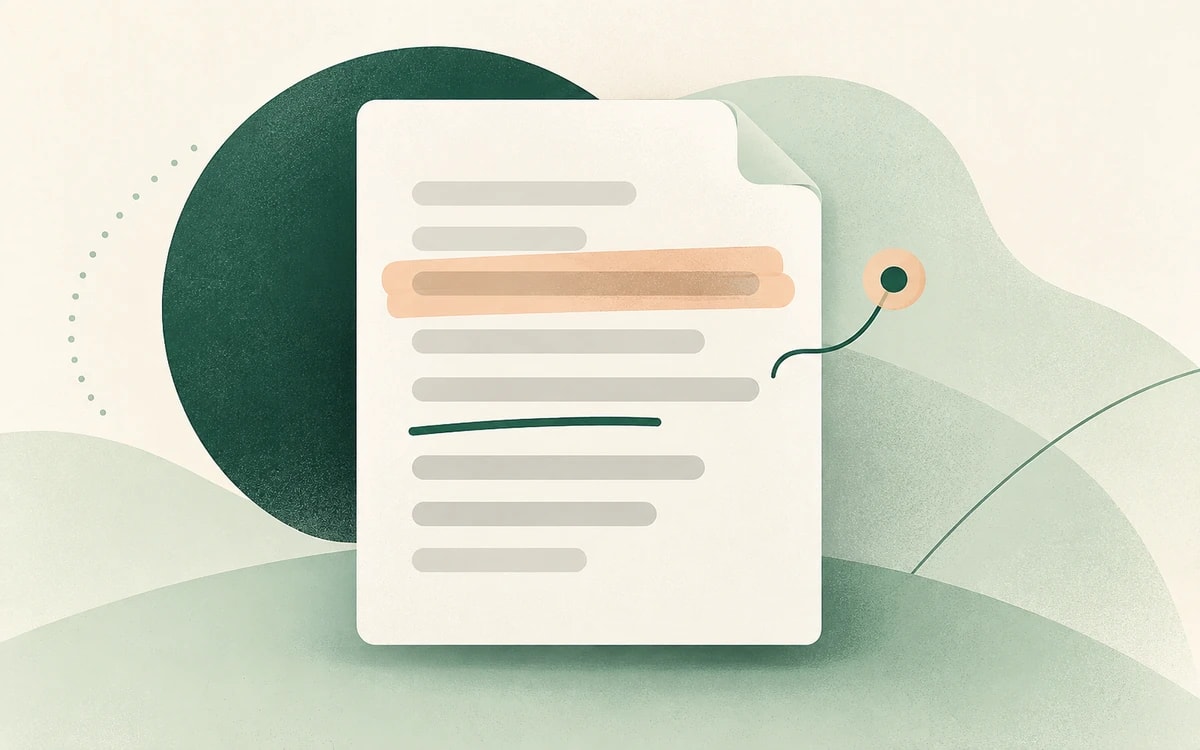
Reviewing a PDF usually means marking it up: highlighting the important lines, striking through what needs to go, and leaving notes for whoever reads it next. Doing that should not require a paid desktop app or an account.
This guide shows how to highlight and annotate a PDF for free using PainlessPDF. It runs in any browser, with no account and no watermark.
What you can mark up
- Highlight key sentences in any color
- Underline terms that need attention
- Strikethrough text that should be removed
- Add notes in the margin for comments and feedback
- Write on the page by adding text anywhere
How to highlight and annotate a PDF
1. Open the annotate tool
Go to PainlessPDF Annotate. You will see a drag-and-drop area for your file.
2. Upload your PDF
Drag your PDF onto the drop area, or click to browse. The document opens in the editor.
3. Select an annotation
Choose highlight, underline, strikethrough, or note from the toolbar. Then drag across the text you want to mark.
4. Adjust as needed
Change the color of a highlight, move a note, or remove any markup you no longer want. Nothing is locked in until you download.
5. Download
Click Download in the top-right corner. Your annotated PDF saves with no watermark.
Tips
- Use color to separate types of feedback. For example, yellow for questions and green for approved sections.
- Combine markup with edits. Since the file is open in the editor, you can also edit existing text or sign the document in the same session.
- Strikethrough instead of deleting. When reviewing for someone else, a strikethrough shows what you propose to cut without removing it outright.
Is annotating PDFs free?
Yes. PainlessPDF is free, needs no account, and adds no watermark. There is no trial before you can download.
Privacy
Your file is sent over an encrypted (HTTPS) connection, used only to apply the markup you added, and not retained afterwards. Temporary processing sessions are cleared automatically, and no account stores your documents.
Ready to mark up your document? Highlight and annotate your PDF for free, no sign up required.