
You have a PDF that needs a few extra words. Maybe a note on a contract, a missing field on a form, or a label on a diagram. You should not need to install software for that.
This guide shows how to add text to any PDF using PainlessPDF, a free browser-based editor. No downloads, no sign-ups, no watermarks.
Common reasons to add text to a PDF
- Filling in a form that is not interactive
- Adding a note or comment to a shared document
- Labeling a chart, screenshot, or diagram
- Writing a header, footer, or page number
- Correcting a typo in a finished file
How to add text to a PDF
1. Open your PDF
Go to the PainlessPDF editor and drag your file onto the page, or click to browse. The document opens instantly in your browser.
2. Select the text tool
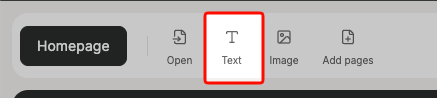
Click the Text button in the toolbar, or press T on your keyboard. Your cursor changes to a text cursor.
3. Click where you want to type
Click anywhere on the page. A text box appears at that spot with a small formatting toolbar above it.
4. Type and format your text
Start typing. Use the toolbar to apply bold, italic, or change the text color with the color picker. You can also pick a different font and adjust the size from the floating bar at the top of the page.
Available fonts include Arial, Roboto, Open Sans, Tinos, Cousine, and Roboto Mono. Font sizes range from 8pt to 96pt.
5. Position your text box
Drag the grip handle on the left side of the toolbar to move the text box anywhere on the page. You can also resize the box by dragging the bottom-right corner.
6. Confirm or cancel
Click the green checkmark to confirm your text, or the X to discard it. Once confirmed, the text is part of your document.
7. Download your PDF
Click Download in the top-right corner. The text is embedded directly in the PDF as real, selectable text.
Tips for better results
- Match the existing font. If the document uses a serif font, pick Tinos. For sans-serif, Arial or Roboto are close to most defaults.
- Use the color picker to match the document's text color. Not every PDF uses pure black.
- Zoom in first for precise placement near existing text or inside form fields.
- Click, don't drag. A single click places the text box. You can move it afterward with the grip handle.
Adding text to scanned PDFs
Scanned PDFs are just images, so you cannot select or edit existing text in them. But you can still place new text on top. The text box sits as a layer above the scanned page, and the exported PDF keeps both layers intact.
Why not just use a desktop app?
Desktop PDF editors like Adobe Acrobat cost money and take time to install. Free alternatives often add watermarks or limit what you can do. For quick text additions, a browser-based tool is faster and simpler.
Your file is sent over a secure, encrypted (HTTPS) connection and edited on our servers, used only for the edit you asked for, then cleared from the temporary session automatically. PainlessPDF is free, needs no account, and adds no watermark.